

Owner's Manual
Published 03/2026
Copyright (C) 2026 KORG Inc. All Rights Reserved.
Table of Contents
- Precautions
- Introduction
- About the automatic power-off
- Part Names and Functions
- Setup
-
Playing a Program
- Selecting a Program
- Operating the Touch Pad
- FX TARGET Function
- Mute Function
- FX RELEASE Function
- Pad Motion
- Setting BPM
- Storing Settings in [PROGRAM MEMORY]
- Turning Effects On/Off Individually (FX Toggle Mode)
- Sampling a Phrase
-
Playing back a Phrase
- Playing back a Sample
- Setting Samples for Each Bank
- Playing back a Loop Sample
- 1 SHOT Sample Playback Settings
- Deleting a Phrase
-
Function Settings
- Function Setting Operations
- About Each Function
- Setting the pad LED
-
Using an SD Card
- Checking the Capacity/Free Space of the SD Card
- Formatting
- Saving to/Loading from an SD Card
- Copying Files (SD Card - Computer)
-
MIDI Functions
- Connecting MIDI Devices
- MIDI Settings
- Using as a MIDI Controller
- Editing Programs
- Specifications
- Troubleshooting
-
Appendix
- Signal flow
- MIDI: Implementation Chart
- Home
- Precautions
Precautions
Location
Using the unit in the following locations can result in a malfunction.
- In direct sunlight
- Locations of extreme temperature or humidity
- Excessively dusty or dirty locations
- Locations of excessive vibration
- Close to magnetic fields
Power supply
Please connect the designated AC adapter to an AC outlet of the correct voltage. Do not connect it to an AC outlet of voltage other than that for which your unit is intended.
Interference with other electrical devices
Radios and televisions placed nearby may experience reception interference. Operate this unit at a suitable distance from radios and televisions.
Handling
To avoid breakage, do not apply excessive force to the switches or controls.
Care
If the exterior becomes dirty, wipe it with a clean, dry cloth. Do not use liquid cleaners such as benzene or thinner, or cleaning compounds or flammable polishes.
Keep this manual
After reading this manual, please keep it for later reference.
Keeping foreign matter out of your equipment
Never set any container with liquid in it near this equipment. If liquid gets into the equipment, it could cause a breakdown, fire, or electrical shock.
Be careful not to let metal objects get into the equipment. If something does slip into the equipment, unplug the AC adapter from the wall outlet. Then contact your nearest Korg dealer or the store where the equipment was purchased.
THE FCC REGULATION WARNING (for USA)
NOTE: This equipment has been tested and found to comply with the limits for a Class B digital device, pursuant to Part 15 of the FCC Rules. These limits are designed to provide reasonable protection against harmful interference in a residential installation. This equipment generates, uses, and can radiate radio frequency energy and, if not installed and used in accordance with the instructions, may cause harmful interference to radio communications. However, there is no guarantee that interference will not occur in a particular installation. If this equipment does cause harmful interference to radio or television reception, which can be determined by turning the equipment off and on, the user is encouraged to try to correct the interference by one or more of the following measures:
- Reorient or relocate the receiving antenna.
- Increase the separation between the equipment and receiver.
- Connect the equipment into an outlet on a circuit different from that to which the receiver is connected.
- Consult the dealer or an experienced radio/TV technician for help.
If items such as cables are included with this equipment, you must use those included items. Unauthorized changes or modification to this system can void the user’s authority to operate this equipment.
SUPPLIER’S DECLARATION OF CONFORMITY (for USA)
- Responsible Party: KORG USA INC.
- Address: 316 SOUTH SERVICE ROAD, MELVILLE, NY
- Telephone: 1-631-390-6500
- Equipment Type: DYNAMIC EFFECT/SAMPLER
- Model: KPV
This device complies with Part 15 of FCC Rules. Operation is subject to the following two conditions:
(1) This device may not cause harmful interference, and (2) this device must accept any interference received, including interference that may cause undesired operation.
Notice regarding disposal (EU only)

IMPORTANT NOTICE TO CONSUMERS
This product has been manufactured according to strict specifications and voltage requirements that are applicable in the country in which it is intended that this product should be used. If you have purchased this product via the internet, through mail order, and/or via a telephone sale, you must verify that this product is intended to be used in the country in which you reside.
WARNING: Use of this product in any country other than that for which it is intended could be dangerous and could invalidate the manufacturer’s or distributor’s warranty.
Please also retain your receipt as proof of purchase otherwise your product may be disqualified from the manufacturer’s or distributor’s warranty.
Data handling
Incorrect operation or malfunction may cause the contents of memory to be lost, so we recommend that you save important data on USB storage devices or other media. Please be aware that Korg will accept no responsibility for any damages which may result from loss of data.
COPYRIGHT WARNING
- This professional device is intended only for use with works for which you yourself own the copyright, for which you have received permission from the copyright holder to publicly perform, record, broadcast, sell, and duplicate, or in connection with activities which constitute “fair use” under copyright law. If you are not the copyright holder, have not received permission from the copyright holder, or have not engaged in fair use of the works, you may be violating copyright law, and may be liable for damages and penalties. KORG TAKES NO RESPONSIBILITY FOR ANY INFRINGEMENT COMMITTED THROUGH USE OF KORG PRODUCTS.
- The content that is built into this product or included with it may not be extracted, recorded, or stored in a form similar to its original state, and distributed or made publicly available on the internet. The content of this product (such as sound programs, style data, accompaniment patterns, MIDI data, PCM sample data, audio data, operating system etc.) is the copyrighted property of KORG Inc. or is copyrighted material used by KORG Inc. under license from a third party. You do not need permission from KORG Inc. to use the above content to produce or perform musical works, or to record and distribute such works.
* All product names and company names are the trademarks or registered trademarks of their respective owners.
- Home
- Introduction
Introduction
Thank you for purchasing the KORG Dynamic Effect/Sampler KAOSS PAD KPV.
To take full advantage of this product's functions and ensure you enjoy long and continued use, please read this owner’s manual carefully before use.
For information on the main features of this product, please visit the "Kaoss Pad KPV" product website.
About the owner’s manual
This product comes with the following owner’s manuals.
Only the Quick Start Guide includes a printed version.
- Quick Start Guide (Printed version, PDF)
- Owner’s manual (HTML)*
* This document you are viewing.
Included items
This product includes the following items:
- Quick Start Guide
- AC adapter
Notation in this manual
- The product specifications (display, operation, software, and other items) and the appearance are subject to change without notice.
- The figures and representations of the illustrations used in this manual may partially differ from the actual product.
- All the illustrations and screenshots shown in this manual are for explanatory purposes only.
- Symbols used in this manual
NoteDescribes the contents to be noted regarding the items that may prevent the performance or functions from being appropriately utilized.
HintDescribes useful supplementary information.[ ]Indicates the names of buttons, switches, and knobs on the Control Panel of the main body.SHIFT MODEIndicates that you should perform the operation while holding down the [SHIFT] button.
Release the [SHIFT] button to cancel SHIFT MODE.
- Home
- About the automatic power-off
About the automatic power-off
This unit automatically turns off if no operations are executed for about 20 minutes (Auto Power Off function). To prevent the power from being turned off by the Auto Power Off function, change the Auto Power Off function setting to DISABLE.

Note
- This unit is shipped from the factory with the Auto Power Off function set to ENABLE.
- If the Auto Power Off function is set to DISABLE, energy consumption will increase.

Hint
Disabling/enabling the Auto Power Off function
- Turn on this unit.
- While holding down the [SHIFT] button, press the [7(GLOBAL)] button in [PROGRAM MEMORY].
- Turn the [PROGRAM/BPM] knob to display
(AUTO POWER OFF), then press the [PROGRAM/BPM] knob.
The current Auto Power Off setting is displayed on the display of this unit.
- Turn the [PROGRAM/BPM] knob to display
The Auto Power Off function is now disabled.
HintTo enable the Auto Power Off function, display - Press the [SHIFT] button.
The display returns to the original screen.
 (AUTO POWER OFF), then press the [
 (DISABLE).
Hint
 (ENABLE) when shipped from the factory.
Note
- Home
- Part Names and Functions
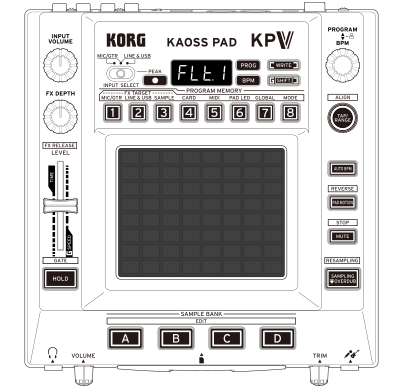
Part Names and Functions
Top panel

- 1
- 2
- 3
- 4
- 5
- 6
- 7
- 8
- 9
- 10
- 11
- 12
- 13
- 14
- 15
- 16
- 17
- 18
- 19
- 20
- [INPUT VOLUME] knob
Adjusts the Input Volume from the device connected to the [LINE IN] jack.
SHIFT MODE:─ - [INPUT SELECT] switch
Switches the input source.
SHIFT MODE:─ - [PEAK] indicator
Displays the level of the input source selected by the [INPUT SELECT] switch in colors.
SHIFT MODE:─
As the input level increases, it is displayed at three levels: green, yellow, and red. When the level reaches near the peak, this indicator turns red. - Display
Displays the currently selected program and the BPM, as well as various setting parameters and values.
SHIFT MODE:─ - [PROG] indicator
Lights up when the program number is displayed on the display.
SHIFT MODE:─ - [BPM] indicator
Lights up when the BPM is shown on the display.
SHIFT MODE:─ - [WRITE] button
Press this button when saving the contents of PROGRAM MEMORY, etc. to the built-in flash memory.
SHIFT MODE:─ - [SHIFT] button
Press this button when using SHIFT MODE functions of which names are framed on the top panel, such as [FX RELEASE] and [GATE].
You can perform various SHIFT MODE operations by operating the SHIFT MODE buttons or faders while holding down the [SHIFT] button. You can also exit from various edit modes by pressing the lit [SHIFT] button.
While you are holding down the [SHIFT] button that is turned off, the FX TARGET status is displayed, enabling you to change it. - [PROGRAM/BPM] knob
Turn this knob when changing the program and the BPM, or when changing each setting value.
Press the knob to switch the display between PROGRAM and BPM.
In some situations, this knob also enables you to navigate through the menu hierarchy, or functions as an execution button.
SHIFT MODE:
During PROGRAM display: Jumps to the first program in the effect group.
During BPM display: Changes the BPM in increments of 1. - [FX DEPTH] knob
Adjusts how much of the effect is applied.
SHIFT MODE:─ - [PROGRAM MEMORY] button
There are buttons numbered [1] through [8] that are used to store the program status and recall stored programs.
SHIFT MODE: Executes the function assigned to each button, such as [FX TARGET], [CARD], or [MIDI]. - [TAP/RANGE] button
Tap this button to set the BPM. When Auto BPM is on, determine the center value of the detection range. Also, when the [TAP/RANGE] button is lit in each edit mode, if you press the [TAP/RANGE] button, you can return to the previous page.
SHIFT MODE: Functions as [ALIGN]. Pressing this button during sample playback or while the [TAP/RANGE] button is lit will reset it to the first beat of the measure. - [LEVEL] fader
Adjusts the sample playback volume. In Gate mode, you can set the duration for which the touch pad stays on automatically as a percentage.
SHIFT MODE: Adjusts the depth of the FX RELEASE effect.
FX RELEASE FunctionIn Gate mode, you can set the speed of the interval to automatically turn on the touch pad.
- Touch pad
Perform effect operations and various editing operations.
SHIFT MODE:─ - [AUTO BPM] button
Turns Auto BPM on and off.
While the [AUTO BPM] button lights up after being pressed, the BPM of the input audio selected by the [INPUT SELECT] switch is read. You can also apply the BPM value of the sample to the unit's BPM by pressing the [SAMPLE BANK] button while holding down the [AUTO BPM] button.
SHIFT MODE:─ - [PAD MOTION] button
Turns pad motion on and off.
SHIFT MODE: Plays a pad motion in reverse. - [MUTE] button
While the [MUTE] button is pressed, the input signal, sampled sound, and synth/drum sound are cut off, and only effect sounds such as delay and reverb can be output.
SHIFT MODE: Stops all the playback of [SAMPLE BANK]. - [HOLD] button
Maintains the state in which you are touching the touch pad.
SHIFT MODE: Switches between Gate mode, in which the touch pad is automatically turned on and off repeatedly when you continue to touch the touch pad, and Normal mode, in which no automatic control is performed. When switched to Gate mode, the [HOLD] button blinks. - [SAMPLING/OVERDUB] button
Press this button once to enter the sampling standby state, and press it twice to enter the overdubbing standby mode.
SHIFT MODE: Enters the resampling standby state. - [SAMPLE BANK] button
Assign samples to the four alphabet character buttons from [A] to [D] and use them for playback, sampling, etc.
SHIFT MODE: Enters the sample edit page.
Front panel

- 1
- 2
- 3
- 4
- 5
- 6
Used to connect headphones.
- [VOLUME] knob
Adjusts the volume level of the device connected to the
- SD card slot
Insert an SD or SDHC card into this slot. When inserting or removing the card, push the card once until it clicks.
* If you insert the card in the incorrect orientation, it may cause a malfunction. If you find it difficult to insert the card, eject it once and check the card orientation. This switch is located on the bottom of the unit and used to switch the input impedance to match the device connected to the
When connecting a high-impedance device such as a guitar, switch to
* Before operating this switch, be sure to turn off this unit and all the devices connected to this unit.
- [TRIM] knob
Adjusts the input volume level of the device connected to the
Connect a microphone or guitar here.
 (Guitar) /
  (Microphone) switch
Rear panel

- 1
- 2
- 3
- 4
- 5
- 6
- 7
- 8
- Functional grounding jack
Jack (screw) to connect this unit to the earth wire.
When connecting to the earth wire, loosen this screw and connect an earth wire (sold separately).
After loosening the jack (screw), be sure to retighten it. Do not use this unit with this jack (screw) removed.
HintDepending on the connection between the unit and peripheral devices, you may feel a slight tingling sensation if sensitive areas of your skin touch the connected microphone or the metal parts of the unit. This is due to a weak current that is harmless to the human body. However, if you are concerned, use the functional grounding jack to connect to an external ground. - POWER switch
Turn the main unit on and off. To turn the power off, hold down this switch for a few seconds.
- [DC 9V] jack
Used to connect the AC adapter provided with this product.
- [MIDI] jack
MIDI [IN] and [OUT] jacks to connect MIDI cables.
Connect a USB cable (sold separately) to this jack when connecting to a computer, etc.
- [CONNECTION ] switch
Switches the audio output setting according to the use of this unit.
- [LINE OUT] jack
A jack for line output, to connect a powered speaker or similar device.
- [LINE IN] jack
A jack for line input.
- Home
- Setup
Setup
This section explains how to connect a CD player or other device to the [LINE IN] jack on the rear panel of this unit and output sound through the speakers or headphones to start playing.
- Connect the included AC adapter cord to the [DC 9V] jack on the rear panel of the unit.
- Plug the AC adapter to an outlet.
- Connect instruments and external devices.
Connect each device to the front and rear panels of this unit by referring to Connection example.
Note- Make sure that all devices are turned off before connecting. A careless operation may result in an electric shock, damage the speaker system, or cause a malfunction.
- Always use the AC adapter included with each device or the dedicated AC adapter.
- Use cables that are three meters or shorter in length to connect to external devices.
HintIf you want to connect this unit to a computer (Windows) with a separately sold USB cable* to use USB AUDIO, download and install the KORG KPV Audio Driver from the KORG website.
* Use a Type B USB cable for this unit.
Connection example
* Change this switch on the bottom of the unit according to the device connected to the
Connecting to the send/return jack before use
* If you want to connect this unit to the send/return jack of a mixer or other device and use it as an external effector, set the [CONNECTION] switch on the rear panel to [SEND].
HintAbout the [CONNECTION] switch
- When this switch is set to [DIRECT], both the input sound and the effect sound are output from this unit. When you are not touching the touch pad, the input sound is output "as is".
Adjust the effect intensity level. - When this switch is set to [SEND], only the effect sound (not the input sound) is output without outputting the audio from the [LINE IN] jack or the audio of the USB audio input. For more information on the send and return jacks, please refer to the owner’s manual for the device that you are connecting.
When you are using this unit as an external effects unit, the return level may be lower than expected. In such cases, adjust the input level on the unit.
Adjust the input volume.
- Set the volume of all the devices to the minimum level.
To adjust the volume of this unit, use the following knobs.
- Adjustment of input volume level
- [INPUT VOLUME] knob: [LINE IN] jack
- [TRIM] knob:
- Adjustment of output volume level
- [VOLUME] knob:
- [VOLUME] knob:
- Adjustment of input volume level
- Plug the AC adapter of each device into an outlet and turn the power on in the following order.
NoteBe sure to turn on the power in the following order. When turning off the power, do so in the reverse order.
- Input device
- This unit
- Output device
- Turn on this unit.
The display lights up.
To turn the power off, hold down the Power switch.
NoteVarious settings are saved when you turn off the power. However, unsaved samples and sample settings will not be saved.
Saving to SD card - Operate the [INPUT SELECT] switch to select the equipment (connected input jack) to apply the effect to.
- [MIC/GTR] : The audio from the equipment connected to the
NoteTo switch to match the input device (microphone, guitar), use the
* Before operating this switch, be sure to turn off this unit and all devices connected to it. - [LINE & USB]: Audio from the device connected to the [LINE IN] jack and audio from the USB audio input are input.
- Center: Audio from the devices connected to the
- [MIC/GTR] : The audio from the equipment connected to the
- Adjust the input volume.
To adjust the input level of the device connected to the [LINE IN] jack, turn the [INPUT VOLUME] knob.
To adjust the input level of the device connected to the
HintInput audio from the connected device and adjust so that the - Adjust the output volume.
Adjust the volume of the output device, such as a powered speakers, connected to the [LINE OUT] jack.
HintIf no sound is produced from the output device connected to the [LINE OUT] jack, check whether the volume on the output side is appropriately adjusted.To adjust the volume of the device connected to the
HintThe volume of the [LINE OUT] jack does not change even if the [VOLUME] knob is adjusted.


 (PEAK) indicator lights up red for a moment.
When you are ready to play, refer to the following topic to try out the instrument.
- Home
- Playing a Program
- Selecting a Program
Selecting a Program
- Turn the [PROGRAM/BPM] knob to select a program.
The currently selected program is shown on the display.
Display example when program FLT.1 is selected. For details about the program names shown on the display, refer to "PROGRAM LIST".
Hint- When the
- By holding down the [SHIFT] button and turning the [PROGRAM/BPM] knob, you can jump to the first program in the effect group and quickly select different groups.
- When the
-
Adjust the effect intensity level.
Turn the [FX DEPTH] knob to adjust the effect intensity level.
Turning the knob fully counterclockwise produces a sound without the effect, while turning it fully clockwise produces a sound with a strong effect.
HintWhen adjusting the effect intensity using the [FX DEPTH] knob, set the [CONNECTION] switch to [DIRECT].

- Home
- Playing a Program
- Operating the Touch Pad
Operating the Touch Pad
The effect is applied when your finger touches the touch pad.
You can control the effect by rubbing or lightly tapping the touch pad with your finger.
Hint
- This unit supports two-point touch. The effect produced when you press a second point varies depending on the program. Also, some programs do not support second-point touch.
PROGRAM LIST - Some programs may have reverberations that continue to linger even after you release your finger from the touch pad.
Note
How to handle the touch pad
- The touch pad may not allow you to operate with anything other than your fingertips or while wearing gloves.
- Never press the touch pad firmly or place heavy objects on it. Rough handling may cause the touch pad to crack or break.
- Avoid rubbing or pressing the touch pad with sharp objects, as this may cause scratches. Always operate it with your fingertips.
- When cleaning, always wipe it gently using a soft, dry cloth. Do not use organic solvents such as thinner as they may lead to deformation.
Normal mode and Gate mode
Two types of actions are available when you touch the touch pad: Normal mode, and Gate mode.
Normal mode
This is a normal mode that controls the touch pad according to the operation of touching and releasing the touch pad.
Gate mode
This mode automatically controls the touch pad by repeatedly touching and releasing it while you continue to touch it.
Gate mode
You can switch between Normal mode and Gate mode by pressing the [HOLD] button while holding down the [SHIFT] button. If you switch to Gate mode, the [HOLD] button starts blinking.
Hold
When you press the [HOLD] button (HOLD is on), the position just before you release your finger from the touch pad is held, and the pad LED at that position remains lit.
Hint
Gate mode
Press the [HOLD] button while holding down the [SHIFT] button to switch to Gate mode.
Gate mode allows you to simply continue to touch the touch pad to automatically repeat the action of touching and releasing the touch pad in sync with the tempo. Control the timing using the [LEVEL] fader.
Gate time (TIME)
This mode allows you to adjust the gate time by operating the [LEVEL] fader.
Set the percentage of time to turn on the touch pad; the set value is shown in percentage format on the display. If the gate time is set to 

Gate speed (SPEED)
This mode allows you to adjust the gate speed by operating the [LEVEL] fader while holding down the [SHIFT] button.
If the gate speed is set to 

Hint
- If you change the gate speed when the gate time is set to 0%, the gate time automatically changes to 1%.
- If you change the gate speed when the gate time is set to 100%, the gate time automatically changes to 99%.
- When a certain amount of time has passed after setting, the display will return to the program display.
- In Gate mode, press the [HOLD] button while holding down the [SHIFT] button again to return to Normal mode.
- Home
- Playing a Program
- FX TARGET Function
FX TARGET Function
Select the target you want to apply the effect to.
- While holding down the [SHIFT] button that is turned off, press the desired button of [1] to [3] of PROGRAM MEMORY.
When the pressed button is lit up, the effect is applied, and when it is turned off, the effect is not applied. Each time the button is pressed, the indicator switches between turned on (with effect) and turned off (without effect).
Hint
 and
and  indicators are turned off, you cannot switch [FX TARGET].
Details of each button
While you are holding down the [SHIFT] button, the [1] to [3] buttons function to switch [FX TARGET].
-
-
-
 MIC/GTR: Microphone or guitar input are applicable.
 LINE & USB: Line input and USB AUDIO input are applicable.
  SAMPLE: SAMPLE BANK [
- Home
- Playing a Program
- Mute Function
Mute Function
While the [MUTE] button is pressed, the input signal, sampled sound, and synth/drum sound are cut off, and only effect sounds such as delay and reverb can be output.
Transformer
By repeatedly turning mute on and off quickly, you can create a rhythm with the sustained input sound, just like the "transformer" DJ technique.
- Home
- Playing a Program
- FX RELEASE Function
FX RELEASE Function
What is FX RELEASE?
The moment you remove your hand from the touch pad (or when the effect is turned off), a delay effect synchronized with the tempo begins, gradually attenuating the sound.
You can easily return to a bypass state from a strong effect such as Distortion or Decimator.
Adjusting the FX RELEASE effect
You can adjust the depth of the FX RELEASE effect by operating the fader while holding down the [SHIFT] button.
Hint
FX RELEASE Parameter Setting
- While holding down the [SHIFT] button, press the [7(GLOBAL)] button.
- Turn the [PROGRAM/BPM] knob to select
When the display switches to the FX RELEASE setting mode, three sliders are displayed on the touch pad.
Three parameters are lined up (from left to right: TYPE, SYNCNOTE, FEEDBACK LEVEL). When you touch a slider shown on the touch pad, the parameter name is displayed on the display. You can change the value by sliding the slider up or down.
FX RELEASE
 (FX RELEASE), then press the [
- Home
- Playing a Program
- Pad Motion
Pad Motion
You can record a touch pad operation and press the [PAD MOTION] button to play back the recorded operation. With the pad LEDs, you can visually confirm the trajectory of a pad motion, which reproduces the movement of your fingers.
Recording a pad motion
A pad motion is recorded when operations are performed while the [PAD MOTION] button is held down.
Hint
- Hold down the [PAD MOTION] button.
This unit enters standby mode. If a pad motion has already been recorded, it is played back.
- While holding down the [PAD MOTION] button, touch the touch pad.
The [PAD MOTION] button blinks and the pad motion recording starts.
The status continues to be recorded while the [PAD MOTION] button is pressed, so operations such as tapping the pad (lightly hitting the pad) are also recorded.
HintThe on/off state of the [HOLD] button is not recorded in the pad motion. - Release your finger from the [PAD MOTION] button.
The pad motion is played back at the same time its recording ends.
Hint- The pad LED automatically turns off after the maximum recording time lapsed.
- When a new pad motion is recorded, the previously recorded one is overwritten.
Playing back a pad motion
When the [PAD MOTION] button is pressed, the button lights up and the pad motion starts a loop playback. The pad LED will show the recorded movement. Press the [PAD MOTION] button again to turn off the button and end playback.
Reverse playback
While holding down the [SHIFT] button, press the [PAD MOTION(REVERSE)] button to play back as a reverse motion. With the same operation, "Backward Playback" → "Forward Playback" → "Backward Playback" is repeated.
Hint
Saving a pad motion
You can save the program when you recorded a pad motion in PROGRAM MEMORY.
Storing Settings in [PROGRAM MEMORY]
- Home
- Playing a Program
- Setting BPM
Setting BPM
What is BPM?
BPM (Beats Per Minute) is an indicator of a song's tempo, expressed as the number of beats (quarter notes) per minute. The higher the BPM, the faster the tempo of the song.
Displaying BPM
When the [PROGRAM/BPM] knob is pressed in the program display, the display changes to the BPM display (

Hint
 (Ext), and the BPM value cannot be adjusted, even if you attempt the following BPM functions and settings.
BPM Manual setting
- Press the [PROGRAM/BPM] knob to switch to the BPM display (the
- Turn the [PROGRAM/BPM] knob to adjust the BPM value.
The BPM value increases or decreases by 0.1. Also, if you turn the [PROGRAM/BPM] knob while holding down the [SHIFT] button, the value increases or decreases by one count (integer).
HintAuto BPM automatically turns off.
Tap tempo function
Even if you don’t know the BPM of a song, you can set the BPM by pressing the [TAP/RANGE] button in time with the beat.
- Press the [TAP/RANGE] button two or more times in time with the song’s beat.
The BPM value will be set to match the beat you pressed, and displayed on the unit.
Setting to BPM of SAMPLE BANK
Press any of the [SAMPLE BANK] buttons while holding down the [AUTO BPM] button to set the BPM value set in the sample.
Auto BPM setting
This function automatically detects the beat of the externally input song, enabling you to set the BPM value. The BPM value of this unit changes in sync with changes in the BPM of the song.
- Press the [AUTO BPM] button to turn on Auto BPM.
The [AUTO BPM] button lights up and the BPM of the currently input audio is automatically detected.
When BPM cannot be detected
Press the [TAP/RANGE] button several times in time with the song’s beat. The BPM will be automatically detected using that beat as a guide.
Due to the characteristics of Auto BPM, values such as 1/2 or 2/3 of the correct BPM, along with small fluctuations, may occur. However, you can use the [TAP/RANGE] button to correct them. The median value of the BPM range is determined depending on the interval at which the [TAP/RANGE] button is pressed during Auto BPM detection.
Hint
Turning Auto BPM off
When you press the [AUTO BPM] button, the button light goes out, the Auto BPM function turns off, then the current BPM value is fixed.
MIDI Sync function
You can set the BPM to match the MIDI timing clock from an external MIDI device. Connect this unit to an external MIDI device that transmits a MIDI timing clock, such as a sequencer.
Hint
- This function is not available to synchronize sequence data with rhythm pattern programs on this unit. To synchronize with sequence data, either write a Touch Pad On message at the beginning of each measure of the sequence, or start the pattern by touching the touch pad at the beginning of the phrase on this unit.
- To receive MIDI timing clock and Touch Pad On messages, configure the unit to be able to receive each message as described in "Setting the MIDI Message Filter".
- When this unit is running by receiving a MIDI timing clock from an external MIDI device, you cannot use the BPM manual setting, Tap Tempo, setting the BPM of the SAMPLE BANK, or Auto BPM.
- Home
- Playing a Program
- Storing Settings in [PROGRAM MEMORY]
Storing Settings in [PROGRAM MEMORY]
Once the current program settings are saved in the [1] to [8] buttons of [PROGRAM MEMORY], you can simply press each button to reproduce the program according to the saved settings.

Stored contents
- Effect program
- [FX DEPTH] knob setting
- Pad Motion
- [HOLD] button on/off status and its position (coordinates)
Saving
- Set the program to the desired configuration that you want to save.
- Press the [WRITE] button.
Each number button in [PROGRAM MEMORY] and the [WRITE] button blink.
- Press the number button in [PROGRAM MEMORY] you want to save.
The settings you configured in step 1 are saved to the built-in memory. When saving is complete, the display returns to the program display.
Note
Loading
- Press the number button in [PROGRAM MEMORY] where the settings you want to load are registered.
Data is loaded with the saved settings.
Note
- If you press the number button in [PROGRAM MEMORY] or turn off the unit before registering the program settings to the corresponding number button in [PROGRAM MEMORY], the program settings will be discarded.
- The settings saved with "Saving" are overwritten when [PROGRAM MEMORY] and [ALL Data] are loaded from the SD card.
- Home
- Playing a Program
- Turning Effects On/Off Individually (FX Toggle Mode)
Turning Effects On/Off Individually (FX Toggle Mode)
In FX Toggle Mode, you can individually turn up to five effects that make up a program on or off, enabling live performances as if you were controlling each effect on a multi-effect unit.
When this mode is enabled, the alphabet character buttons in [SAMPLE BANK] function as the effect on/off switches.

Note
- In FX Toggle Mode, the alphabet character buttons in [SAMPLE BANK] are switched to the function that turns individual effects on/off, so you cannot use the alphabet character buttons to play/stop samples or perform sampling.
- The on/off state of the effects set in FX Toggle Mode is temporarily available only in FX Toggle Mode, and it is not saved in the user program.
All effects are turned on if you select a different program, return to Program Mode, or turn on the power again.
How to operate
- While holding down the [SHIFT] button, press the [8(MODE)] button.
- Turn the [PROGRAM/BPM] knob to select
When the mode switches to FX Toggle Mode, the display shows
The alphabet character buttons in [SAMPLE BANK] used for sample playback and the sampling function act as the effect ON/OFF switches.
- As necessary, press any alphabet character button to turn effects off (blinking) or on (lit up) individually.
In the default FX Toggle Mode, all effects assigned to the alphabet character buttons are turned on (lit up).
Effects assigned to alphabet character buttons
- [A]: EFFECT1
- [B]: EFFECT2
- [C]: EFFECT3
- [D]: EFFECT4 & EFFECT5 (Simultaneous control)
Hint- The [D] button is assigned to two effects (EFFECT4 and EFFECT5), which are both turned on/off simultaneously each time the button is pressed.
- The effects (EFFECT1 to EFFECT5) assigned to each button differ for each program. The effect configuration of the program also differs for each program.
PROGRAM LIST - If no effects are assigned, the buttons are turned off.
To disable FX Toggle Mode
Turn the [PROGRAM/BPM] knob to select 
Hint
- Home
- Sampling a Phrase
Sampling a Phrase
Sampling
You can sample the input sound, and record and save loop or one-shot sample data.
Hint
- Loop sample data can be sampled for up to 8 bars (32 beats, approximately 26 seconds) with the BPM value at the start of recording.
- If the tempo value is less than 69, the maximum number of beats is 16, and if the tempo value is less than 35, the maximum number of beats is 8. The beat lengths that can be specified as loop samples are 32, 16, 8, 4, 2, and 1 beat.
- If you want to sample a sound with an effect applied, resample it.
Resampling - If
- Press the [SAMPLING/OVERDUB] button.
The unit goes into the standby state, all the [SAMPLE BANK] buttons and the [SAMPLING/OVERDUB] button blink red, and
Hint- To cancel Standby mode, press the [SHIFT] button.
- Auto BPM automatically turns off.
- The previous sampling or resampling settings are carried over.
To change the settings, press the [PROGRAM/BPM] knob several times to display the parameter you want to change, then turn the [PROGRAM/BPM] knob to change the setting value. - The previous sampling or resampling settings are carried over. To change the settings, press the [PROGRAM/BPM] knob several times to display the parameter you want to change, then turn the [PROGRAM/BPM] knob to change the setting value.
 (default: 4BEAT sampling), etc. is shown on the display.
Parameters to reset as needed
There are three types of parameters that can be set before sampling.
Sampling length
- Press the [PROGRAM/BPM] knob several times to display
- If you select
- If you select 1 to 32, loop sampling is performed for the selected number of BEATs.
HintIf sampling ends before the set BEAT has elapsed, the mode changes to 1 SHOT sampling.
- If you select
 (1SHOT) or 1 to 32.
Auto Sampling threshold
- Press the [PROGRAM/BPM] knob several times to display
When sampling is set to a value other than
The available threshold values are as follows.
For example, when set to
 to
to  .
. to
to  with dots is displayed, which serves as a guide for setting the threshold.
Setting the Sample Playback Trigger
- Press the [PROGRAM/BPM] knob several times to display the sample playback trigger (
Set the sample playback trigger type.
Setting the Sample Playback Trigger
- Press the alphabet character button you want to sample from among the blinking [SAMPLE BANK] buttons.
- Only the alphabet character button of the pressed [SAMPLE BANK] blinks, and
- The [PROGRAM MEMORY] buttons blink in sequence in time with the beat recording.
- If you start with 1 SHOT sampling, the time when the [8] button in [PROGRAM MEMORY] lights up will be set as the maximum recording time.
HintThe sample data registered to the selected alphabet character button in [SAMPLE BANK] is overwritten.
- Only the alphabet character button of the pressed [SAMPLE BANK] blinks, and
 (REC) is shown on the display.
To sample as a one-shot sample after starting with LOOP sampling, press the blinking alphabet character button in [SAMPLE BANK] before the set BEAT has elapsed. Sampling ends, and the one-shot sample is completed.
After starting with LOOP sampling, sampling ends if the set BEAT time has elapsed before pressing any alphabet character button in [SAMPLE BANK], and the loop sample is completed. If the Sample Playback Trigger is set to Type1 or Type3, the mode automatically switches to Playback.
Setting the Sample Playback Trigger
Resampling
You can directly sample (resampling) the sound output to the 
- While holding down the [SHIFT] button, press the [SAMPLING/OVERDUB] button.
The unit goes into the standby state, all the alphabet character buttons in [SAMPLE BANK] and the [SAMPLING/OVERDUB] button blink yellow, and
Hint- To cancel Standby mode, press the [SHIFT] button.
- Auto BPM automatically turns off.
- When you press any button in [SAMPLE BANK], the sample data registered to that button will be overwritten once its playback stops.
Overdubbing
You can overdub the input sound or the playback sound of another BANK onto [SAMPLE BANK] that has been sampled or resampled from a loop sample.
Hint
You cannot overdub an empty sample bank or a one-shot sample.
- Press the [SAMPLING] button twice.
The unit goes into the standby state, and the overdubbing available alphabet character buttons in [SAMPLE BANK] and the [SAMPLING/OVERDUB] button blink blue. At this time, you can turn the [PROGRAM/BPM] knob to set the audio to be overdubbed.
- Only the external input sound (the input sound from the [LINE IN] /
HintWhen
- Only the external input sound (the input sound from the [LINE IN] /
- When you want to start overdubbing, press the blinking alphabet character button in [SAMPLE BANK].
Overdubbing starts. When you attempt to overdub, if the alphabet character button you pressed is stopped, playback will start.
- When you stop overdubbing, press the alphabet character button in [SAMPLE BANK] you pressed in step 2.
HintTo cancel the last overdubbing you performed, hold down the [SAMPLING/OVERDUB] button. You can only cancel overdubbing onto a loop from the start to the end of overdubbing.
- Home
- Playing back a Phrase
- Home
- Playing back a Phrase
- Playing back a Sample
Playing back a Sample
The sample recording status of each alphabet character button in [SAMPLE BANK] can be checked by how the button lights up.
- Yellow: Loop sample is recorded.
- Red: One-shot sample is recorded.
- Off: No sample data is recorded.
Press a button with a loop sample recorded to start loop playback. When played back, the button lights up green. Press the same button again to stop playback.
Stopping playback of all samples
While holding down the [SHIFT] button, press the [MUTE] button to stop all the samples that are currently played back.
| Status | Empty | Loop | One shot |
|---|---|---|---|
| Stopped | Off (faint white) | Lights up yellow. | Lights up red. |
| Playing | Off (faint white) | Lights up green. | Lights up red. (briefly lights up green when playback starts, then returns to red.) |
| Waiting | Running | |||
|---|---|---|---|---|
| [A][B][C][D] | [SAMPLING] | [A][B][C][D] (any one) | [SAMPLING] | |
| sampling | Blinks red. | Blinks red. | Blinks red. | Lights up red. |
| resampling | Blinks yellow. | Blinks yellow. | Blinks red. | Lights up yellow. |
| overdub | Blinks blue*. | Blinks blue*. | Blinks red. | Lights up blue. |
* Only banks that can be overdubbed blink blue (blink alternately with the color of the stopped or playing bank).
Setting the beginning of the beat (SAMPLE ALIGN function)
The timing when you press the [TAP/RANGE] button while holding down the [SHIFT] button is set as the beginning of the measure, and the [TAP/RANGE] button blinks red. The first beat blinks red, and the second to fourth beats blink white.
This operation aligns the beginning of loop sample playback with the leading timing of the beat.
Setting the playback level of all samples
To change the sample playback volume of all banks, adjust it with the [LEVEL] fader.
- Home
- Playing back a Phrase
- Setting Samples for Each Bank
Setting Samples for Each Bank
The sample edit page allows you to set the level and playback.
Adjusting the level for each bank
- While holding down the [SHIFT] button, press the alphabet character button you want to set in [SAMPLE BANK].
The sample edit page opens.
The target alphabet character button blinks, and the pad LED displays the sample playback level in a bar graph.
- Touch the bar graph displayed on the touch pad to adjust the playback level of the bank.
- Two levels are displayed for each SAMPLE BANK, and can be adjusted.
- If you press another alphabet character button or touch the bar graph of a sample of another alphabet character button, the editing target changes, enabling you to adjust the playback level. At this time, the playback status of the SAMPLE BANK remains unchanged.
HintPress the currently selected alphabet character button to switch the playback status of the sample.
Press the [SHIFT] button to complete the setting and return to Normal mode.
Setting the start point
- While holding down the [SHIFT] button, press the alphabet character button you want to set in [SAMPLE BANK].
The sample edit page opens.
- Slide the slider displayed on the left side of the pad LED up or down to adjust the start point of the sample.
Adjust the start point with 1 beat/32 resolution. The range is ±1 beat.
- Home
- Playing back a Phrase
- Playing back a Loop Sample
Playing back a Loop Sample
Slice setting
You can set the pattern to play back the recorded loop sample.
Hint
One-shot samples cannot be set.
- While holding down the [SHIFT] button, press the alphabet character button you want to set in [SAMPLE BANK].
The sample edit page opens.
The target alphabet character button blinks, and at the same time, all the buttons in [PROGRAM MEMORY] light up (default).For a 16-beat loop sample, the sample is divided into eight portions of two beats each from the beginning and assigned to the [1] to [8] buttons in [PROGRAM MEMORY]. Pressing each button turns on/off the sample sound of the assigned beat. For a 32-beat loop sample, the sample is divided into eight portions of four beats each from the beginning.
The beats that are turned off are not played back, and the loop sample is shortened or muted.
Press the [PROGRAM/BPM] knob several times to scroll to
Slide the slider displayed on the right side of the pad LED up or down to display- When set to
- The beats that are turned off are not played, and the loop sample is shortened. This allows you to create a loop of the original length, such as a one-bar loop consisting of only the first two beats and the last two beats of a four-bar loop.
- When set to
- The time of the turned-off beats is muted, and the loop sample is not shortened. You can mute the sample playback sound for a specific beat without changing the loop length.
- When set to
 (START-TRG-SKIP).
 (SKIP) or
  (MUTE).
Press the [PROGRAM/BPM] knob several times until 
By default, the pad LEDs are displayed as follows: the vertical axis indicates the selection of the sliced sample, and the horizontal axis indicates the playback position.

You can edit the order to play back the slices by touching and dragging the slice sample at each playback position displayed on the pad.

The green pad LEDs indicate forward playback. If you touch a green pad LED again, it changes to red, enabling you to set the slice to play back in reverse.

Hint
By default, slice numbers are set from "1" to "8" for each of the [1] to [8] buttons in [PROGRAM MEMORY].
Setting the Sample Playback Trigger
You can select the trigger method when you press each button in [SAMPLE BANK] to play back a sample.
- While holding down the [SHIFT] button, press the alphabet character button you want to set in [SAMPLE BANK].
The sample edit page opens.
Press the [PROGRAM/BPM] knob several times to scroll to
- Slide the slider in the center of the pad LED up or down to select the trigger type.
Press one of the alphabet character buttons to play back the sample and check it.
Press another alphabet character button to switch the editing target.
- Press the [SHIFT] button.
Settings are completed and the unit returns to Normal mode.
Hint
Trigger Type List
Type1


Type2


Type3


Type4


- Home
- Playing back a Phrase
- 1 SHOT Sample Playback Settings
1 SHOT Sample Playback Settings
Setting the Sample Playback Trigger
As with loop samples, when playing back one-shot samples, you can select either Type3 or Type4 from the Trigger Type List as the trigger method when you press each button in [SAMPLE BANK].
Hint
- One-shot samples cannot be set to Type1 or Type2.
- If the display is different, press any button in [PROGRAM/BPM] several times to display the playback pitch set for the selected sample.
- When Type 3 is set, the sample plays to the end.
Setting the playback pitch
Press the [PROGRAM/BPM] knob several times to scroll to 


Setting the playback direction
Press the [PROGRAM/BPM] knob several times to scroll to 

- Home
- Deleting a Phrase
Deleting a Phrase
In the sample edit page, press any one of the alphabet character buttons in [SAMPLE BANK] while holding down the [MUTE] button to erase the registration of the button you pressed, and reset all settings for loop samples and 1-shot samples to the default values.
- Home
- Function Settings
Function Settings
- Home
- Function Settings
- Function Setting Operations
Function Setting Operations
To perform the operations such as formatting the SD card and saving and loading sample data, use the function buttons in SHIFT MODE.
- While holding down the [SHIFT] button, press any one of the [1] to [8] buttons in [PROGRAM MEMORY] to select the function to execute.
In this example, press the [4(CARD)] button (if an SD card is inserted,
- Turn the [PROGRAM/BPM] knob to display the sub-parameter you want to select (e.g.
The displayed sub-parameter is selected.
Display example
HintTo reselect the sub-parameter, press the [TAP/RANGE] button while the [TAP/RANGE] button is lit.
- Press the [SHIFT] button.
If you changed the value of the sub-parameter in step 2, it is set to that changed value, and the screen returns to the program display.

 , etc. is displayed). For details about the functions assigned to each function button, refer to "
 ), then press the [
Hint
- Home
- Function Settings
- About Each Function
About Each Function
This section describes the functions of the [1] to [8] buttons in [PROGRAM MEMORY] when the [SHIFT] button is pressed.
Hint
For how to operate the functions assigned to the function buttons, refer to "Function Setting Operations".
MIC/GTR(FX TARGET)
Select the target you want to apply the effect to. When this button is lit, the effect is applied to the input from the 
LINE & USB(FX TARGET)
Select the target you want to apply the effect to. When this button is lit, the effect is applied to the input from the [LINE IN] jack and the 
Note
When 

SAMPLE(FX TARGET)
Select the target you want to apply the effect to. When this button is lit, the effect is applied to the sound played from the [A] to [D] buttons in [SAMPLE BANK].
CARD
 CARD
CARDPerform the operations to load and save data from the SD card, and format the card, etc.
-
Loads data from the SD card.
- SAMPLE BANK - A to D: For details, refer to "When SAMPLE Data is selected".
- PROGRAM MEMORY:[0]-[9]
- GLOBAL:[0]-[9]
- ALL:[0]-[9]
-
Saves data to the SD card.
- SAMPLE BANK - A
- SAMPLE BANK - B
- SAMPLE BANK - C
- SAMPLE BANK - D
- PROGRAM MEMORY:[0]-[9]
- GLOBAL:[0]-[9]
- ALL:[0]-[9]
-
Displays the total capacity of the SD card.
Example: 8.00G (X.XXM to XXX.G) is displayed.
-
Displays the amount of free space on the SD card.
Example: 8.00G (X.XXM to XXX.G) is displayed.
-
Formats the SD card.
-
* Default = NO: Does not save.
-
 (SAVE)
 (FREE)
 (FORMAT)
 (NO)/
(NO)/  (YES)
(YES)MIDI
 MIDI
MIDISet the MIDI clock and MIDI message filters, and set the channel and control change number for MIDI messages sent and received. For each of the [SAMPLE BANK] buttons, set the note number.
-
-
 (FILTER)
 (CLOCK):
 (AUTO)
 (PROGRAM CHANGE):
 (CONTROL CHANGE):
 (NOTE):
 (SYSTEM EX):
 (MESSAGE)
 (GLOBAL MIDI CH):CH01 ~ CH16
 (SAMPLE BANK B):C-1 ~ G9,off
 (SAMPLE BANK C):C-1 ~ G9,off
 (PAD X1):C000 ~ C127,off
 (PAD Y1):C000 ~ C127,off
 (PAD TOUCH1):C000 ~ C127,off
 (PAD X2):C000 ~ C127,off
 (PAD Y2):C000 ~ C127,off
 (PAD TOUCH2):C000 ~ C127,off
 (FX DEPTH):C000 ~ C127,off
 (FADER):C000 ~ C127,off
 (TOUCH HOLD):C000 ~ C127,off
PAD LED
 PAD LED
Set the pad LED.
-
Turns on/off the function that displays the program name on the pad LED of the touch pad when changing a program.
* Default = ON -
Set the illumination that is displayed on the pad LED after a certain amount of time has passed since you released your finger from the touch pad.
* Default = TYPE CHAIN- OFF:
- Turns off the illumination.
- CHARACTER:
- Scrolls text. This text can be changed with the KPV editor.
- TYPE1 ~ TYPE9:
- Displays the illumination in a variety of patterns.
- TYPE CHAIN:
- Automatically switches between illuminations TYPE1 to TYPE9 .
NoteThe illumination does not function in Hold mode or at the time of function settings. - TYPE USER:
- Displays a GIF file as illumination (user pattern).
Displaying a GIF File as Illumination
-
You can edit the LED illumination when you touch the touch pad however you like.
Setting the pad LED -
Set the scroll speed of the text displayed on the pad LEDs
* Default = MIDDLE
NoteThe illumination display speed cannot be changed.
 (ON)/
(ON)/  (OFF)
(OFF) (ILLUMINATION)
 (CHARACTER)/
  ~
~  (TYPE1 ~ TYPE9)/
  (TYPE CHAIN)/
  (TYPE USER)
 (COLOR)
 (SCROLL SPEED)
 (VERY SLOW)/
  (SLOW)/
  (MIDDLE)/
  (FAST)/
  (VERY FAST)
GLOBAL
 GLOBAL
Configure various main unit settings.
-
Set three parameters of the FX RELEASE function.
FX RELEASE Function- TYPE:
- Set whether to swap the feedback sound left and right
- SYNCNOTE:
- Set the delay time with the note length (1/64, 1/32, 1/24, 1/12, 1/8, 1/6, 3/16, 1/4, 3/8, 1/2, 3/4, 1/1).
- FEEDBACK LEVEL:
- Set the feedback (0 to 100) of the FX RELEASE effect.
-
Suppresses the floor noise input to the
* Default = MIDDLE
-
Adjusts the volume of programs for Drum and Synth.
- -12 to +12
* Default = 0 (dB)
- -12 to +12
-
Set the destination where to connect the input audio from the
* Default = LINE IN
-
Set the operation when the [LEVEL] fader position does not match the actual parameter value.
* Default = JUMP- JUMP:
- When you move the fader, the parameter value jumps to the value indicated by the fader. This setting is recommended as the effect is easy to see when editing.
- CATCH:
- Even if you move the fader, the parameter value does not change until it matches the value indicated by the fader. This setting is recommended if you want to avoid the value from changing suddenly while playing, etc.
- VALUE SCALE:
- When you move the fader, the parameter value increases or decreases relatively in the same direction as the fader. When the fader reaches both ends, the parameter value also moves to its maximum or minimum value, and once the fader and parameter values match, the fader and parameter values will always match from then on.
-
Set the type of microphone connected to the
* Default = BALANCED
-
Displays the version number of this unit.
-
Enables/disables the Auto Power Off function.
About the automatic power-off
* Default = ENABLE: Enabled.
-
Returns all settings of this unit except for SAMPLE BANK to the factory settings.
* Default = NO: Always displayed as the default.
-
Updates the system of this unit. For details, visit the KORG website.
* Default = NO: Always displayed as the default.
 (TYPE)/
  (FEEDBACK LEVEL)
 (CROSS) or not
  (STRAIGHT).
 (NOISE GATE)
 (LOW)/
  (HARD)
 (MIC SETTING)
 (BALANCED)/
  (UNBALANCED)
 (VERSION)
 (PRELOAD)
 (SYSTEM UPDATE)
MODE
 MODE
MODE-
Enables the contents of the SD card inserted in this unit to be read and written by the computer connected via a USB cable.
Copying Files (SD Card - Computer)
-
Used as a MIDI controller. Transmits MIDI messages assigned to each controller set in the KPV Editor.
Using as a MIDI Controller
HintAccess the KPV Editor from the KORG website. -
You can change the preset programs or create your own original effects.
Editing Programs -
The alphabet character buttons used for the sample playback and sampling function acts as effect ON/OFF switches.
Turning Effects On/Off Individually (FX Toggle Mode)
 (SD CARD READER)
 (READY)
 (EXTERNAL CONTROL)
 (PROGRAM EDIT)
Other characters shown on the display
(ERROR)
Displayed when a function cannot be executed for some reason.
If the [SHIFT] button is blinking with this message displayed, press the [SHIFT] button to clear the error.
(POWER OFF)
Displayed when the power switch is being held down after the power is turned on (and then power is turned off).
(CARD ERROR)
Displayed when no SD card is inserted or when the SD card cannot be used for some reason.
- Home
- Function Settings
- Setting the pad LED
Setting the pad LED
Editing the Pad LED Lighting Color or Lighting Location
You can edit the LED illumination when you touch the touch pad.

- While holding down the [SHIFT] button, press the [6(PAD LED)] button in [PROGRAM MEMORY].
- Turn the [PROGRAM/BPM] knob to select
The LEDs on the touch pad blink and light as follows.
This function allows you to edit the color that lights up when you touch the pad LED, and whether or not to light up for each LED.
- Two LEDs light and blink in the top three rows of the touch pad, forming a cross.
- The color of the LED that indicates the left cross shows the color of the pad LED that lights up when you touch it with your first finger, and the color of the LED that indicates the right cross is the color of the pad LED that lights up when you touch it with your second finger.
- The side with the blinking LED indicates that it is ready for editing.
- Set the color of the pad LED that lights up when you touch it with your first finger.
- Changing the lighting color
- Check that the LED showing the left cross is blinking, and touch the desired color from among the LEDs that are lighting up in the lower five rows; the color of the LEDs showing the cross changes.
HintYou can adjust the brightness of the LEDs that are lighting up in the lower five rows by operating the fader next to the touch pad.
- Changing the lighting locations
- You can turn on/off up to nine LEDs, including the center LED showing the cross and the LEDs in the four corners. Each time you touch the target LED, it switches between turned on and turned off.
Example of changing the lighting color and lighting locations of the pad LED you touched with your first finger - Set the color of the pad LED that lights up when you touch it with your second finger.
If you touch one of the LEDs showing the right cross, the LED showing the right cross blinks.
After this, repeat the same procedure as for editing the LED showing the left cross.
Example of changing the lighting color and locations of the pad LED you touched with your second finger - When you have finished editing the lighting color and lighting locations of the pad LED, press the [SHIFT] button.


Displaying a GIF File as Illumination
Insert into the unit an SD card containing the specified GIF file copied to the specified folder. The GIF file can then be displayed on the pad LED as illumination.
Requirements
- The file must be in GIF format and named "animation.gif"*
- In the [KORG] folder in the root directory of the SD card
* May not be compatible with some GIF files.
Note
- If you remove the SD card, the GIF file (illumination) is not displayed.
- For information on the directory structure on the SD card, refer to "Folder Structure and Files on the SD Card".
- Home
- Using an SD Card
Using an SD Card
You can use an SD card (sold separately) to save and load the internal data or the edited program. You can also load audio files (.wav or .aiff) created on a computer into this unit.
- Checking the Capacity/Free Space of the SD Card
- Formatting
- Saving to/Loading from an SD Card
- Copying Files (SD Card - Computer)
About SD card
- An SD card is not included with this product.
- The following SD cards are available.
- SD card: Max. 2GB
- SDHC card: Max. 32GB
- When using a large-capacity SDHC card, it may take some time to read or write data.
About the write protect switch
By setting the write protect switch of the SD card to "LOCK", you can prevent data on the SD card from being accidentally deleted or overwritten.
When writing or deleting data on the SD card, return the write protect switch to its original position.

Hint
Inserting/ejecting the SD card
Paying attention to the orientation of the SD card, push it in until you hear a click.
If you push the SD card in again, it will be ejected at the same time as you hear a click.

- Home
- Using an SD Card
- Checking the Capacity/Free Space of the SD Card
Checking the Capacity/Free Space of the SD Card
Checking the amount of free space and total capacity of the SD card
- While holding down the [SHIFT] button, press the [4(CARD)] button in [PROGRAM MEMORY].
- Turn the [PROGRAM/BPM] knob to select
The remaining capacity of the SD card is shown on the display of this unit.
- Turn the [PROGRAM/BPM] knob to select
The total capacity of the SD card is shown on the display of this unit.
- Press the [SHIFT] button.
The [SHIFT] button turns off and the screen returns to the program display.
Files compatible with the SD card inserted in this unit
The following files can be written/read by this unit.
Files available for saving and loading
| File type | File name and extension |
| SAMPLE Data | .KVS |
| GLOBAL | 0 to 9.KVG |
| PROGRAM MEMORY Set | 0 to 9.KVP |
| All Data | 0 to 9.KVA *3 |
| USER PRESET | 0 to 99.preset |
Files available for loading
| File type | File name and extension |
| SAMPLE Data |
|
- *1: Loading is possible only for 16-bit or 24-bit linear PCM in Mono/Stereo format. The supported sampling frequencies are 44.1 kHz and 48 kHz. Files with other sampling frequencies cannot be loaded correctly.
- *2: Sample data in these file formats is loaded with optimal settings for looping, so the pitch may be different from when played back on a computer, etc. To play back at the original pitch, specify the correct number of beats for the loop sample when loading it, and adjust the unit's BPM. If the sample data exceeds the maximum recording length for a single bank, an error message is displayed. If the sample data is shorter than the length that can be recorded in one bank, the missing data will be treated as silence.
- *3: If a file called "0.KVA" exists on the SD card, it is automatically loaded when the unit is started up.
- Home
- Using an SD Card
- Formatting
Formatting
Note
- If you format an SD card, its contents will be lost.
- When using SD cards on this unit, always format them on this unit (do not format on other devices such as a computer or digital camera). Using an SD card formatted on another device may cause it to not work properly.
- While holding down the [SHIFT] button, press the [4(CARD)] button in [PROGRAM MEMORY].
- Turn the [PROGRAM/BPM] knob to select
- Turn the [PROGRAM/BPM] knob to select
Execute formatting. When formatting is complete,
- Press the [SHIFT] button.
The [SHIFT] button turns off and the screen returns to the program display.
 is displayed on the display of this unit.
Note
Hint
 (ERROR) or
  (CARD ERROR) is displayed.
Folder Structure and Files on the SD Card
When you format the SD card, a [KORG] folder is created in the root directory of the SD card. Saving data on this unit automatically creates additional folders, which can then be used to save and load data. You can also copy audio files created on your computer to the specified folder and load them into this unit. The folder tree is shown and described below.
  KORG
  ├ Global
  │ └ 0.kvg *1
  │
  ├ Import *2
  │ ├ IR *3
  │ │ └ UserIRData.wav
  │ ├ SampleOsc *4
  │ │ └ UserSample.wav
  │ └ SampleBank *5
  │    └ UserLoop.wav
  │
  ├ ProgramMemory *6
  │ └ 0.kvp
  │
  ├ SampleBank *7
  │ ├ A-0.kvs
  │ ├ A-1.kvs
  │ ├ B-0.kvs
  │ ├ C-0.kvs
  │ └ D-0.kvs
  │
  ├ UserPreset *8
  │ ├ IR *9
  │ │ └ User01_Slot0.wav
  │ ├ SampleOsc *10
  │ │ └ User00_Slot0.wav
  │ ├ 0.preset
  │ ├ 1.preset
  │
  ├ 0.kva *11
  ├ animation.gif *12

 Each file name in the tree above is shown as an example.
- *1: kvg files saved with CARD > SAVE > GLOB
- *2: Folder for storing user data (wav/aiff) prepared on your computer
- *3: Folder for storing the IR data loaded via the FILE parameter of the Effect IR Loader when using a User Preset. Monaural Maximum: 1024 samples.
- *4: Folder for storing audio data loaded via the WAVE parameter of the Effect SampleOSC when using a User Preset. Maximum: approx. 26 seconds.
- *5: Audio files created on a computer and loaded via CARD > LOAD > SMP.A-D
- *6: kvp files saved via CARD > SAVE > PROG
- *7: kvs files saved via CARD > SAVE > SMP.A to D
- *8: UserPreset storage folder
- *9: Stores waveform files loaded into the IR Loader in the User Preset.
- *10: Stores waveform files loaded into the SampleOSC in the User Preset.
- *11: kva files stored via CARD > SAVE > ALL
- *12: Places user pattern (GIF) files created on a computer directly under the [KORG] folder on the SD card. The file name is fixed.
- Home
- Using an SD Card
- Saving to/Loading from an SD Card
Saving to/Loading from an SD Card
You can use an SD card (sold separately) to save and load sample data, programs, and internal data of memory, etc. You can also load audio files (.wav or .aiff) created on your computer into this unit.
Hint
Saving to SD card
- While holding down the [SHIFT] button, press the [4(CARD)] button in [PROGRAM MEMORY].
- Turn the [PROGRAM/BPM] knob to select
- Turn the [PROGRAM/BPM] knob to select the type of data you want to save to an SD card, then press the [PROGRAM/BPM] knob.
Display Description SAMPLE Data Contents of PROGRAM MEMORY Configuration data file for MIDI FILTER, MESSAGE, pad LED, and GLOBAL A file with - Turn the [PROGRAM/BPM] knob to select the number of the file you want to save from "0" to "9"*, then press the [PROGRAM/BPM] knob.
* For SAMPLE Data, file numbers are assigned automatically, and files are always saved with incrementing numbers.
Display Description Adds and saves a new file. Overwrites the same file name ("1" in this case). Unwritable file or folder - Turn the [PROGRAM/BPM] knob to select
Execute data saving. When saving is complete,
HintThe SD card cannot be saved if protected (displayed
NoteNever turn off the power or remove the SD card while saving is in progress. Doing so may damage the SD card and render it unusable. - Press the [SHIFT] button.
The [SHIFT] button turns off and the screen returns to the program display.


Loading from an SD card
- While holding down the [SHIFT] button, press the [4(CARD)] button in [PROGRAM MEMORY].
- Turn the [PROGRAM/BPM] knob to select
- Turn the [PROGRAM/BPM] knob to select the type of data you want to load from the SD card, then press the [PROGRAM/BPM] knob.
Display Description SAMPLE Data Contents of PROGRAM MEMORY Configuration data file for MIDI FILTER, MESSAGE, and pad LED A file with - Turn the [PROGRAM/BPM] knob to select the number of the file you want to load from "0" to "9"*, then press the [PROGRAM/BPM] knob.
* For information on how to load SAMPLE Data, refer to "When SAMPLE Data is selected".
- Turn the [PROGRAM/BPM] knob to select
Execute data loading. When loading is complete,
- Press the [SHIFT] button.
The [SHIFT] button turns off and the screen returns to the program display.
When SAMPLE Data is selected
If you select any one of 

- Turn the [PROGRAM/BPM] knob to select any one of
On the screen for selecting the SD card location, the pad LEDs light up yellow as shown below.
- Touch the left pad LED (lit yellow) loads data saved in
- Touch the right pad LED (lit yellow) to load data you copied to the [Import] folder on the SD card (IMPORT SAMPLE).
Folder Structure and Files on the SD Card
- Touch the left pad LED (lit yellow) loads data saved in
- Touch either pad LED.
After a location is selected, the pad LEDs light up as shown below.
This is a display example. How to see the lit pad LEDs
Each lit pad LED represents a folder or file stored on the SD card. Four yellow pad LEDs represent one folder, and each pad LED that is arranged in a single color randomly, not consecutively, represents a file stored on the SD card.
The above lighting sample on the touch pad indicates that there are one folder and eight files on the same level. Also, if there are too many files to display on a single screen, turn the [PROGRAM/BPM] knob to view the remaining files.
- Selecting/auditioning to the file you want to load
When you touch a yellow pad LED, the folder name is displayed on the display. When you touch a single colored pad LED, the file name is shown on the display.
HintIf the file name of the pad LED that is lit red is "a.wav",To select a file in a folder
While lightly pressing, touch the yellow pad LED to display a file list in the folder, and the pad LED lights up as follows.
The above lighting sample on the touch pad indicates that six files are stored in the folder you touched.
HintPress the [TAP/RANGE] button to return to the upper level.To audition a file
Continue to touch the pad LED that corresponds to the file you want to audition.
- Releasing your finger from the pad LED will stop playback.
- You can turn the [FX DEPTH] knob to adjust the playback volume.
- The file name is shown on the display.
- If the file to be loaded has a .wav or .aiff extension, press the [PROGRAM/BPM] knob, then turn the [PROGRAM/BPM] knob to specify the number of beats for the loop sample, and press the [PROGRAM/BPM] knob again.
For example,
- Turn the [PROGRAM/BPM] knob to select
Execute data loading. When loading is complete,
- Press the [SHIFT] button.
The [SHIFT] button turns off and the screen returns to the program display.


 is shown on the display.
 in the display indicates that 8 beats are specified.
- Home
- Using an SD Card
- Copying Files (SD Card - Computer)
Copying Files (SD Card - Computer)
You can use this unit as an SD card reader by connecting the USB jack of this unit to a computer.
Hint
Note
- Connect this unit to the computer using a USB cable.
- While holding down the [SHIFT] button, press the [8(MODE)] button in [PROGRAM MEMORY].
- Turn the [PROGRAM/BPM] knob to select
This unit will now switch over to function as an SD card reader.
- If this unit functions as an SD card reader,
- To exit the SD card reader mode, press the [SHIFT] button (to return to the program display).
Note- Never press the [SHIFT] button while the unit is communicating with the computer. Doing so may damage the SD card and render it unusable.
- Before disconnecting the USB cable connecting the unit to the computer, be sure to exit the SD card reader mode.
- If this unit functions as an SD card reader,
- Copy the necessary files from the mounted SD card drive to the computer, or copy the necessary files from the computer to the SD card drive.
- When you have finished copying files, right-click the SD card drive icon and select Eject from the context menu that is displayed.
- Press the [SHIFT] button to exit the SD card reader mode.
- Home
- MIDI Functions
MIDI Functions
- What is MIDI?
- MIDI, which stands for Musical Instrument Digital Interface, is a global standard for exchanging various performance-related information between electronic musical instruments and computers.
- About the MIDI Implementation Chart
- The MIDI Implementation Chart allows you to check the MIDI messages that can be sent and received. When using MIDI devices, compare the MIDI Implementation Charts of each MIDI device to check which MIDI messages are supported.
Hint
- Home
- MIDI Functions
- Connecting MIDI Devices
Connecting MIDI Devices
To send and receive MIDI information, use a commercially available MIDI cable. Connect the [MIDI] jack of this unit to the MIDI jack of the external MIDI device that exchanges information.
[MIDI] jack on the rear panel

Connecting to a computer
When connecting to a computer, you can also send and receive MIDI messages by connecting this unit to a USB cable.
When using the KPV Editor, be sure to connect to a computer using a USB cable. While the KPV Editor is running, do not disconnect the unit, turn off the power, or switch the unit to SD card reader mode (Copying Files (SD Card - Computer)). The auto power-off function operates even while the unit is connected to the KPV Editor. When the auto power-off function is set to ENABLE, the unit automatically turns off and disconnects if no operations are performed for a certain period of time.
About the automatic power-off

- Home
- MIDI Functions
- MIDI Settings
MIDI Settings
This unit can also be used as a real-time controller for an external MIDI device in addition to using an effector. You can also connect this unit to a MIDI sequencer, etc. and record the MIDI messages sent by operating the touch pad to reproduce touch pad operations.
Setting the MIDI Message Filter
- While holding down the [SHIFT] button, press the [5(MIDI)] button in [PROGRAM MEMORY].
- Turn the [PROGRAM/BPM] knob to select
- Turn the [PROGRAM/BPM] knob to select a message you want to filter, then press the [PROGRAM/BPM] knob.
Clock Program change Control change Note System exclusive - Turn the [PROGRAM/BPM] knob to select
If you select
Operates with the internal clock. Set this when using this unit independently, or when synchronizing this unit with an external MIDI device as the master (controller). Operates in sync with the MIDI clock from an external MIDI device connected to the MIDI IN connector or USB connector.
Hint- When the clock is set to
- For information on the external MIDI device synchronization settings, refer to the instruction manual for the device you are using.
When a MIDI clock is input from an external MIDI device connected to the MIDI IN jack or USB jack, the unit automatically works as - When the clock is set to
- Press the [SHIFT] button.
Setting the MIDI channel
Set the MIDI channel for this unit.
- While holding down the [SHIFT] button, press the [5(MIDI)] button in [PROGRAM MEMORY].
- Turn the [PROGRAM/BPM] knob to select
- Turn the [PROGRAM/BPM] knob to select
The currently set MIDI channel is displayed.
- Turn the [PROGRAM/BPM] knob to select the MIDI channel.
- Press the [SHIFT] button.
The selected MIDI channel is set.
HintThere are MIDI channels 1 to 16 to allow multiple MIDI devices to transmit different information over a single MIDI cable. When the MIDI channel for the sender is "1", the MIDI channel for the receiver must also be set to "1"; otherwise, MIDI message are not transmitted.
Changing the control change number and note number
- While holding down the [SHIFT] button, press the [5(MIDI)] button in [PROGRAM MEMORY].
- Turn the [PROGRAM/BPM] knob to select
- Turn the [PROGRAM/BPM] knob to select the controller you want to change, then press the [PROGRAM/BPM] knob.
Sending/receiving note messages
Each button in [SAMPLE BANK] Sending/receiving control change messages
Touch pad X-axis (first point) Touch pad Y-axis (first point) Touch pad touch (first point) Touch pad X-axis (second point) Touch pad Y-axis (second point) Touch pad touch (second point) [FX DEPTH] knob [LEVEL] fader: Gate Time [HOLD] button - Turn the [PROGRAM/BPM] knob to select the control change number or the note number.
If you select the control number that is already set for the other controller, the period lights up. If you set this value, the unit sends and receives the same control change messages as the other controller.
- Press the [SHIFT] button.
- Home
- MIDI Functions
- Using as a MIDI Controller
Using as a MIDI Controller
In External Control mode, this unit can be used as a MIDI controller to control external MIDI devices such as synthesizers and software synthesizers on a computer.
Connection example when using in External Control mode

Hint
- For information on the controllable parameters, refer to the instruction manual of the device/software you are using.
- Depending on the device/software you are using, some parameters may not be controllable or may require a prior setting. For details, refer to the instruction manual of the device/software you are using.
Switching to External Control mode
- While holding down the [SHIFT] button, press the [8(MODE)] button in [PROGRAM MEMORY].
- Turn the [PROGRAM/BPM] knob to select
The unit operates in external control mode.
HintPress the [SHIFT] button to exit the External Control mode.
MIDI message settings in External Control mode
Use the KPV Editor to set the MIDI messages sent in External Control mode.
Hint
- Access the KPV Editor from the KORG website. For information on how to set MIDI messages, refer to the KPV Editor instruction manual.
- Only the one-finger message operation is supported for the touch pad operation in External Control mode.
Controllers available in External Control mode
| Controller | MIDI messages sent (factory default) |
|---|---|
| Touch pad X-axis (all ranges) | Control change (#70) |
| Touch pad Y-axis (all ranges) | Control change (#71) |
| Touch pad X-axis (upper range from center) | Control change (#72) |
| Touch pad X-axis (lower range from center) | Control change (#73) |
| Touch pad Y-axis (upper range from center) | Control change (#74) |
| Touch pad Y-axis (lower range from center) | Control change (#75) |
| Touch pad XY (lower left to right) | Control change (#76) |
| Touch pad ON/OFF | Control change (#92) |
| [LEVEL] fader | Control change (#93) |
| [FX DEPTH] knob | Control change (#94) |
| [HOLD] button | Control change (#95) |
| [1] button in [PROGRAM MEMORY] | Control change (#49) |
| [2] button in [PROGRAM MEMORY] | Control change (#50) |
| [3] button in [PROGRAM MEMORY] | Control change (#51) |
| [4] button in [PROGRAM MEMORY] | Control change (#52) |
| [5] button in [PROGRAM MEMORY] | Control change (#53) |
| [6] button in [PROGRAM MEMORY] | Control change (#54) |
| [7] button in [PROGRAM MEMORY] | Control change (#55) |
| [8] button in [PROGRAM MEMORY] | Control change (#56) |
| [A] button in [SAMPLE BANK] | Note on/off (#36) |
| [B] button in [SAMPLE BANK] | Note on/off (#37) |
| [C] button in [SAMPLE BANK] | Note on/off (#38) |
| [D] button in [SAMPLE BANK] | Note on/off (#39) |
| [PROGRAM/BPM] knob |
Program change (#0 to #127) Timing clock |
Messages sent and received in modes other than external control mode
| Controller | MIDI messages sent and received (factory default) |
|---|---|
| Touch pad X direction | Control change (#12) |
| Touch pad Y direction | Control change (#13) |
| Touch pad ON/OFF | Control change (#92) |
| Touch pad X direction (second point) | Control change (#14) |
| Touch pad Y direction (second point) | Control change (#15) |
| Touch pad ON/OFF (second point) | Control change (#96) |
| [LEVEL] fader | Control change (#93) |
| [FX DEPTH] knob | Control change (#94) |
| [HOLD] button | Control change (#95) |
| [A] button in [SAMPLE BANK] | Note on/off (#60) |
| [B] button in [SAMPLE BANK] | Note on/off (#61) |
| [C] button in [SAMPLE BANK] | Note on/off (#62) |
| [D] button in [SAMPLE BANK] | Note on/off (#63) |
| [PROGRAM/BPM] knob |
Program change, bank select MIDI timing clock (only when clock is set to  (INT)) (INT))
|
- Home
- Editing Programs
Editing Programs
A program, which provides up to five effects, consists of virtual patches and mixer that connect the touch pad control or LFO, EG, etc. to each effect parameter.
Mixer block diagram
You can edit the programs already registered in this unit and reconfigure your desired program. For details about the list of the programs already registered, refer to PROGRAM LIST.
Note
An SD card (sold separately) is required to save edited programs.
How to edit
- Turn the [PROGRAM/BPM] knob to select the program you want to edit.
- While holding down the [SHIFT] button, press the [8(MODE)] button in [PROGRAM MEMORY].
- Turn the [PROGRAM/BPM] knob to display
Edit the displayed program.
- When you have finished editing the program, press the [WRITE] button.
- Turn the [PROGRAM/BPM] knob to select the user program (U.00 to U.99) you want to save.
- Press the [PROGRAM/BPM] knob at the saving destination.
If you do not want to save, select
- Select
 : Adds and saves a new user program.
 : Saves and overwrites an existing user program.
How to operate each button when editing a program
- [1] to [8] buttons in [PROGRAM MEMORY]: Returns to the main screen of the editing page for each program.
- [WRITE] button: Saves the edited program.
- [SHIFT] button: Exits the Edit mode.
- [HOLD] button: Auditions the edited program.
You can audition the program you are currently editing by holding down the [HOLD] button and touching the touch pad.
If you hold down the [HOLD] button, the [PROGRAM MEMORY] [1] and [2] buttons light up to indicate the current touch mode (1-point or 2-point mode). At this time, if you press the [PROGRAM MEMORY] [1], the touch mode can be switched to 1-point mode, and if you press [2], it can be switched to 2-point mode.
- [PROGRAM/BPM] knob: Turn the knob to select a parameter, press the knob to select a parameter for which you can change the value.
- [TAP/RANGE] button: When lit, press the [TAP/RANGE] button again to return to the previous state.
Main screen to which the display transitions when each number button is pressed
Each edit page for Effects 1 to 5 to
Edit the type and parameters of each effect.
Hint
The parameter contents differ depending on the effect type.
Main screen
The effect type that has been set is scroll-displayed on the touch pad.

- Turn the [PROGRAM/BPM] knob.: Select the effect type.
- Press the [PROGRAM/BPM] knob.: Select the effect type to proceed to the Parameter Setting screen.
Note
Displayed effect types may vary depending on current DSP usage.
Parameter Setting screen
This screen displays up to 12 parameter sliders (four rows and six columns (1) to (6) in the upper area, and four rows and six columns (7) to (12) in the lower area, 12 in total). Some effect types have more than 13 parameters. Turning the [PROGRAM/BPM] knob displays the sliders for the 13th and later parameters.
PARAMETER LIST

* One parameter = four vertical pad LEDs
When you touch each slider, the parameter name is shown on the display. You can change the value by moving it up and down. The setting value is shown by the four vertical pad LEDs.
- When operating the slider, you can input by flicking to the left and right of the grid (pad LED) you are touching.
- You can flick-release a pad LED to the left to use as a shortcut for moving the parameter you are currently touching to the Virtual Patch Source settings that is specified as the destination.
- You can flick-release a pad LED to the right to use as a shortcut for moving the parameter you are currently touching to the Virtual Patch Curve settings.
- After moving to each screen, press the [TAP/RANGE] button to return to the original parameter setting screen.
Example of flicking Parameter 2

Parameters in red are specified as the virtual patch destination 
Hint
You can view the parameter list for each effect type.
PARAMETER LIST
Modulation Edit Page
You can edit modulation parameters such as LFO, EG, and envelope follower. One program provides four LFOs, four EGs, and two envelope followers.
As an example, the LFO parameter selection screen is used for explanation.
Main screen
The set modulation type is scroll-displayed on the touch pad.

- Turn the [PROGRAM/BPM] knob.: Select the modulation type.
- Press the [PROGRAM/BPM] knob.: Go to the Parameter Setting screen.
Modulation Parameter Selection Page
The upper half of the touch pad displays the waveform selection (L, R) on the left and right, the modulation waveform (W) in the center, and the lower half displays six parameters (1) to (6) from the left.

* One parameter = four vertical pad LEDs
You can change the modulation waveform forward or backward by pressing the L or R cell in the upper area.
When you touch each slider, the parameter name is shown on the display, enabling you to move it up and down to change the value. The setting amount is shown by one horizontal pad LED x four vertical pad LEDs.
- When operating a slider, you can flick-input to the left and right of the grid (pad LED) you are touching.
- You can flick-release a pad LED to the left to use as a shortcut for moving the parameter you are currently touching to the Virtual Patch Source settings that is specified as the destination.
- You can flick-release a pad LED to the right to use as a shortcut for moving the parameter you are currently touching to the Virtual Patch Curve settings.
- After moving to each screen, press the [TAP/RANGE] button to return to the original parameter setting screen.
Virtual Patch Edit Page
You can use up to 32 virtual patches to control effect or mixer parameters using each modulation or the touch pad.
As an example, you can use it to change the volume when you move the touch pad, or to oscillate the pan with an LFO.
Main screen
This displays a screen to select from 32 virtual patches (hereafter referred to as VPs).

When you touch the grid, the VP number 
When you release, the display moves to the setting screen for each VP.
Virtual Patch setting screen (page)
This screen consists of four pages.
 (Source) Select the VP input source.
 (Other) Enable or disable the VP, and set the direction and amount of change for the effect.
 (Curve) Set the curve of change.
Turn the [PROGRAM/BPM] knob to switch between pages.
VP Source setting screen
Select from the following 16 items. When you press the touch pad, the selected parameter name is shown on the display.

- X1: Touch pad X-axis 1
- Y1: Touch pad Y-axis 1
- T1: Touch pad touch 1
- X2: Touch pad X-axis 2
- Y2: Touch pad Y-axis 2
- T2: Touch pad touch 2
- EF1: Envelope follower 1
- EF2: Envelope follower 2
- LFO1: LFO1 (LOW FREQUENCY OSCILLATOR 1)
- LFO2: LFO2 (LOW FREQUENCY OSCILLATOR 2)
- LFO3: LFO3 (LOW FREQUENCY OSCILLATOR 3)
- LFO4: LFO4 (LOW FREQUENCY OSCILLATOR 4)
- EG1: Envelope Generator 1
- EG2: Envelope Generator 2
- EG3: Envelope Generator 3
- EG4: Envelope Generator 4
VP Destination setting screen
Select from the following 8 items. When you press the touch pad, the selected parameter name is shown on the display.

When you touch and release FX1 to FX5, the display transitions to the next screen.
The selected parameter is shown on the display. Touching each parameter shows its name on the display and changes the value.

VP Other setting screen (Parameter display area)

* In reality, the three parameters are displayed together on one screen, but from here on, they are described separately for each parameter.
When set to OFF, the VP is disabled.
ON

OFF

Polarity area
Set the polarity of the curve set in "CURVE". The value changes from the minimum to the maximum according to the polarity you set in this step.
Setting it to "+" (positive) gives an effect only in the "+" (positive) direction from 0, and setting it to "±" gives an effect from "-" (negative) to "+" (positive).


Sliding up and down in the Intensity area changes the setting value (the following touch pad lighting example shows a case of sliding in the positive direction. Sliding upwards from the center is positive, and sliding downwards is negative). Set the strength of the effect and the positive or negative direction.

VP Curve setting screen
Set the curve along which the parameter changes. Set the curve that changes from the minimum value to the maximum value. You can freely draw the change curve with your finger.
Example: Linear curve

Example: Special curve

Mixer Edit Page
Set the input/output volume and left/right positioning of each effect.
Main screen
This displays a screen for selecting and setting the input/output volume and left/right positioning (pan pot) of each effect.

Touch any one cell in the lower five rows to select the item to edit.
When you touch it, the parameter name is shown on the display.
- In1 to In5: Set the level where to input the audio input sound to each effect.
- 1-2 to 5-4: Set the level where to input each effect output sound to an effect with a different number.
Example: "1-2" sets the level where to input the output of EFFECT1 to EFFECT2. - Out1 to Out5: Set the level where to mix each effect output sound with the audio output.
- Pan1 to Pan5: Set the positioning of the audio output sound of each effect.
Hint
- Cells in the lower five rows turn orange if the level is not zero or positioning is not centered.
- Cells in the lower five rows turn blue if the level is zero or positioning is centered.
- When you slide the slider, the value editing behavior differs between level and positioning.
- Touching areas with a green background has no effect.
Mixer block diagram


After selecting an item, you can set the value by sliding the slider located in the upper two rows.
- For level: Set the left end to MIN, and the right end to MAX.
- For pan: Set the left end to the left (L), the center to the center, and the right end to the right (R).
Screen example under setting
The part where the level is 1 or higher or set to VP Destination lights up. (The touch pad sample below shows an example where audio sounds are connected by setting the input/output level in the following flow : Audio In → FX1 → FX2 → FX3 → FX4 → FX5 → Audio Out.)

- Home
- Specifications
Specifications
The appearance and specifications of the product are subject to change without notice.
| Number of programs | 270 (170 preset programs, 100 user programs) |
| Connectors | OUTPUT L/R (pin jack), LINE IN L/R (pin jack), MIC/GUITAR IN (6.3mm TRS phone jack, balanced (for MIC) / 6.3mm TRS phone jack, unbalanced (for GUITAR)), (headphone) jack (6.3 mm stereo phone jack), MIDI IN/OUT, USB (Type B) |
| External storage | SD card, SDHC card (maximum capacity 32GB) * Class10 or higher recommended (However, this does not guarantee operations with all cards.) |
| Power supply | DC9V |
| Dimensions and weight | 210 (W) x 226 (D) x 49 (H) mm, 1.3 kg (excluding AC adapter) |
| Operating temperature | 0 to +40 ˚C (non-condensing) |
| Inlcuded items | AC adapter, Quick Start Guide |
- Home
- Troubleshooting
Troubleshooting
If this unit does not operate normally during use, check the following items.
If this does not solve the problem, or if there is an error that is not described here, unplug the AC adapter from the outlet and contact KORG Customer Service
| Symptom | Cause | Remedy |
|---|---|---|
| The effect does not work. | The [FX DEPTH] knob is turned all the way to the left. | Turn the [FX DEPTH] knob clockwise. |
| [FX TARGET] turns off. | Turn [FX TARGET] on. | |
| I touch the second point, but the effect does not change. | A program that is not compatible with two-point touch has been selected. | Check whether the program is compatible with two-point touch. PROGRAM LIST |
| The touch pad does not respond to slow touches. | This behavior is due to the specifications of the touch panel sensor. If you touch the touch pad very slowly, it may be recognized as noise instead of a finger touch. | Touch the touch pad normally. It will respond correctly. |
| In a two-point touch program, re-touching immediately after releasing the first point may not register as the second touch. | This behavior is due to the specifications of the touch panel sensor. It takes approximately 0.02 seconds for a touch to be registered internally after being released from the pad. | After releasing the touch pad, wait at least 0.02 seconds before performing another touch. |
| If the first and second touch points are too close, they may be recognized as a single touch. | This behavior is due to the specifications of the touch panel sensor. If two touch points are close together, they may register as a single touch. | Adjust the touch points to keep them farther apart. |
| It is difficult to recognize the effect in some cases. | If the input volume to the effect is too low, it may be difficult to recognize the effect. | Adjust [INPUT VOLUME] or SAMPLE BANK LEVEL so that the input volume to the effect is appropriate. |
| Noises or abnormal sounds may be mixed in the output sound depending on the type of effect. | The input sound is too loud. | For the type that has the gain function within the effect, a distortion may occur. It may be improved by lowering the volume of the input sound or adjusting the position at which you touch the touch pad. |
| The output sound may be silent depending on the type of effect. | This problem may occur when you change the effect type while touching the touch pad. | Some effect types record the input sound when you are not touching the touch pad, and play it back from the moment you touch it. If you are using such an effect type, try waiting for a period of time without touching the touch pad. |
| The power turns off automatically after a certain period of time elapses. | The Auto Power Off function is set to ENABLE. | Set the Auto Power Off function to DISABLE. About the automatic power-off |
| I want to use this unit to send/return an external effector using the [LINE IN] jack or USB AUDIO input, but an audio loop back occurs. | The [CONNECTION] switch on the rear panel is not set to [SEND]. | If you want to use this unit to send/return an external effector, set the [CONNECTION] switch to [SEND]. |
| When I move the [LEVEL] fader, the value sometimes changes suddenly. | The mode is set to  (JUMP). (JUMP). |
You can avoid sudden changes by changing  (FADER MODE) setting of [GLOBAL] to (FADER MODE) setting of [GLOBAL] to  (CATCH) or (CATCH) or  (VALUE SCALE). (VALUE SCALE). |
| If a computer is connected to USB AUDIO when the [CONNECTION] switch on the rear panel is set to [DIRECT], the audio from the USB AUDIO input is output to the USB AUDIO, causing a loop back. | The USB AUDIO input routing is set to [LINE IN]. | If (USB AUDIO IN ROUTING) is set to  (LINE OUT), the USB AUDIO input audio is mixed directly to the [LINE OUT] jack, so it is not mixed into the USB AUDIO output, preventing loop back. However, there are restrictions including that it is not possible to sample or overdub the USB AUDIO input, and not possible to apply effects. For details, refer to "Signal flow". (LINE OUT), the USB AUDIO input audio is mixed directly to the [LINE OUT] jack, so it is not mixed into the USB AUDIO output, preventing loop back. However, there are restrictions including that it is not possible to sample or overdub the USB AUDIO input, and not possible to apply effects. For details, refer to "Signal flow". |
| Cannot sample or overdub the USB AUDIO input audio. | (USB AUDIO IN ROUTING) is set to (LINE OUT). |
Set (USB AUDIO IN ROUTING) is set to (LINE IN). |
| There is a difference in volume between the Drum and Synth categories and the other categories. | The Drum and Synth categories are self-oscillating. The other categories change depending on the volume of the external audio input, so there is a difference in their volumes. | It may be possible to reduce the volume difference by setting the  (DRUM/SYNTH LEVEL) parameter of [GLOBAL]. (DRUM/SYNTH LEVEL) parameter of [GLOBAL]. |
| Files (wav, aiff, etc.) copied to the SD card are not selectable. | There is a limit to the number of files that can be stored in a single folder, which may vary depending on conditions. | Move files to another folder or reduce the number of files in the current folder, then the target file may become selectable. |
| A message may be displayed when accessing the SD card. |
If you try to access the SD card when it is not yet ready to be accessed, this message may be displayed. | Wait a few seconds before trying to access the SD card. |
| When you turn the unit back on after saving a PROGRAM MEMORY Set or setting GLOBAL parameters, the saved values may change. | If "0.KVA (the All Data file saved as No. [0])" is stored in the root of the [KORG] folder on the SD card, it is automatically loaded when the unit is powered on. The PROGRAM MEMORY Set and GLOBAL parameters contained in the "0.KVA" file are then applied. | To prevent the "0.KVA" file saved on the SD card from being automatically loaded when the unit is turned on, delete the "0.KVA" file from the root of the [KORG] folder on the SD card. You can also prevent the All Data file from being automatically loaded when the power is turned on by saving the file with a number other than No. [0]. |
- Home
- Appendix
Appendix


 : Addition
 : Branching/Connection
 : Level
 : Selector
MIDI: Implementation Chart
Model:KPV Date:2025.07.01
Version:1.00
| Function | Transmitted | Received | Remarks | |
|---|---|---|---|---|
|
Basic Channel |
Default Change |
1-16 1-16 |
1-16 1-16 |
Memorized |
| Mode |
Memorized Messages Altered |
x ******** |
3 × × |
|
|
Note Number : |
True Voice |
0-127 ******** |
0-127 0-127 |
*M *N |
| Velocity |
Note On Note Off |
x9n,V=100(1-127) x8n,V=64(0-127) |
x × |
*1 ()*2 *3 ()*4 |
| Aftertouch |
Key's Channel |
× × |
× × |
|
| Pitch Bend | × | × | ||
|
Control Change |
0, 32 | 〇 | 〇 | Bank Select *P *B |
| 0-119 | 〇 | 〇 | As control source *C | |
|
Program Change |
Variable Range |
〇 0-127 ******** |
〇 0-127 0-127 |
*P |
| System Exclusive | 〇 | 〇 | *S | |
|
System Common |
: Song Position : Song Select : Tune |
× × × |
× × × |
|
|
System Real Time |
: Clock : Command |
〇 〇 |
〇 × |
*5 *6 |
|
Aux Message |
: Local On/Off : All Note Off : Active Sense ; Reset |
× × 〇 × |
× × × × |
|
|
Notes *N,*C,*P,*S:Transmitted/received when the MIDI Message Filter (Note,CC,Prog,SysE) is enabled. *M : Transmitted/received only for the note numbers assigned to each button in the SAMPLE BANK. *B : This message is transmitted/received except in the "EXTERNAL CONTROL" mode. *1 : The received velocity is always recognized as 100, and the transmitted velocity is always fixed at 100. *2 : In "EXTERNAL CONTROL" mode, Velocity can be set to any value (1-127). *3 : The received velocity is always recognized as 64, and the transmitted velocity is always fixed at 64. *4 : In "EXTERNAL CONTROL" mode, Velocity can be set to any value (0-127). *5 : When the Clock Source is INT, it transmits but does not receive, and vice versa when the Clock Source is EXT or AUTO. *6 : Transmitted in "EXTERNAL CONTROL" mode. |
||||
Mode 1:OMNI ON, POLY Mode 2:OMNI ON, MONO o:Yes
Mode 3:OMNI OFF, POLY Mode 4:OMNI OFF, MONO x:No